ICC Case Connect stores case-specific information such as the contact details you want to be used for the case, as well as your Statement of Acceptance, Availability, Independence, and Impartiality (SAAII).
You can update your contact information and SAAII from the ‘My Profile’ page. Scrolling down the page you will see a section titled ‘My Contact Information and SAAII’.
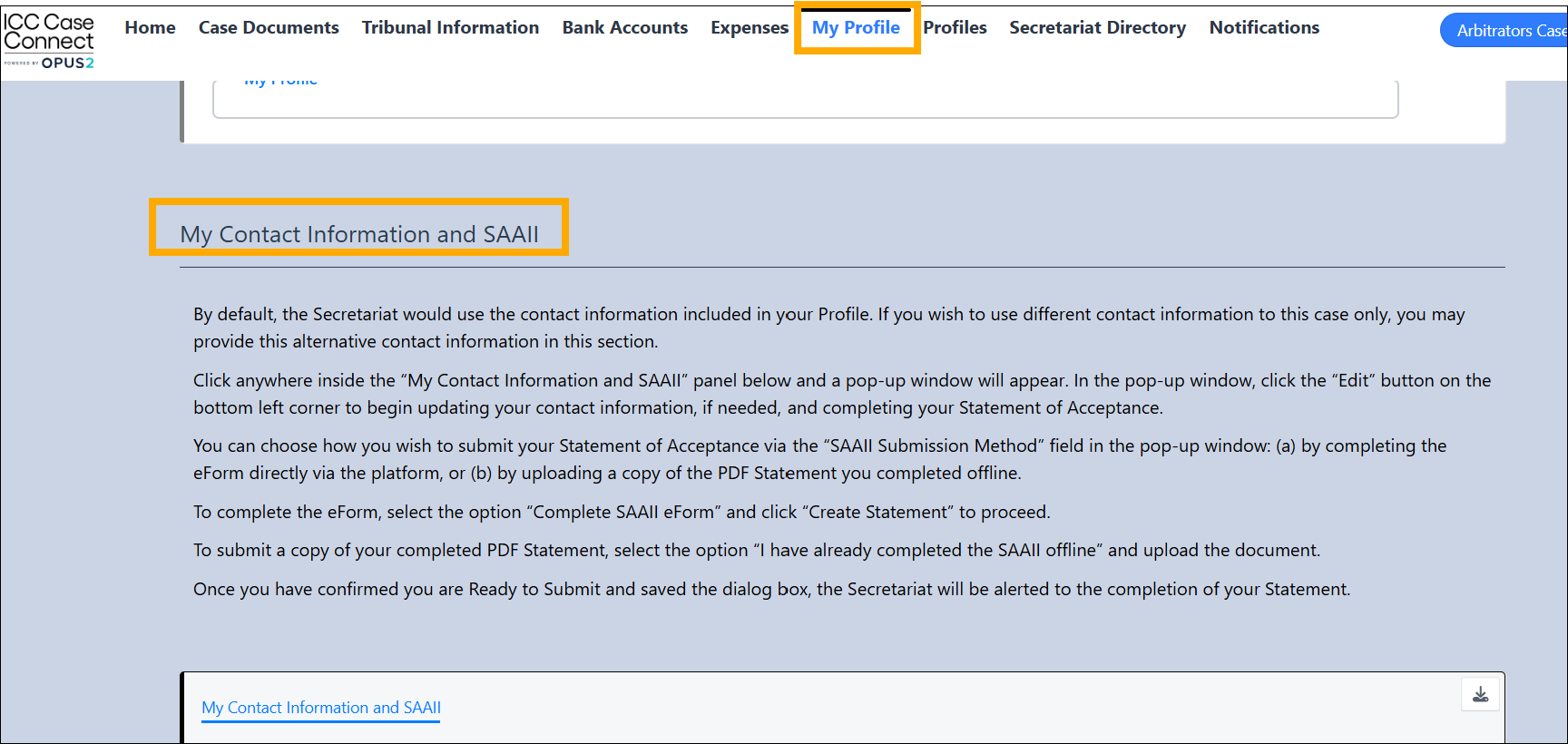
1. Click anywhere inside the "My Contact Information and SAAII" panel to open it as a pop-up window over the page.
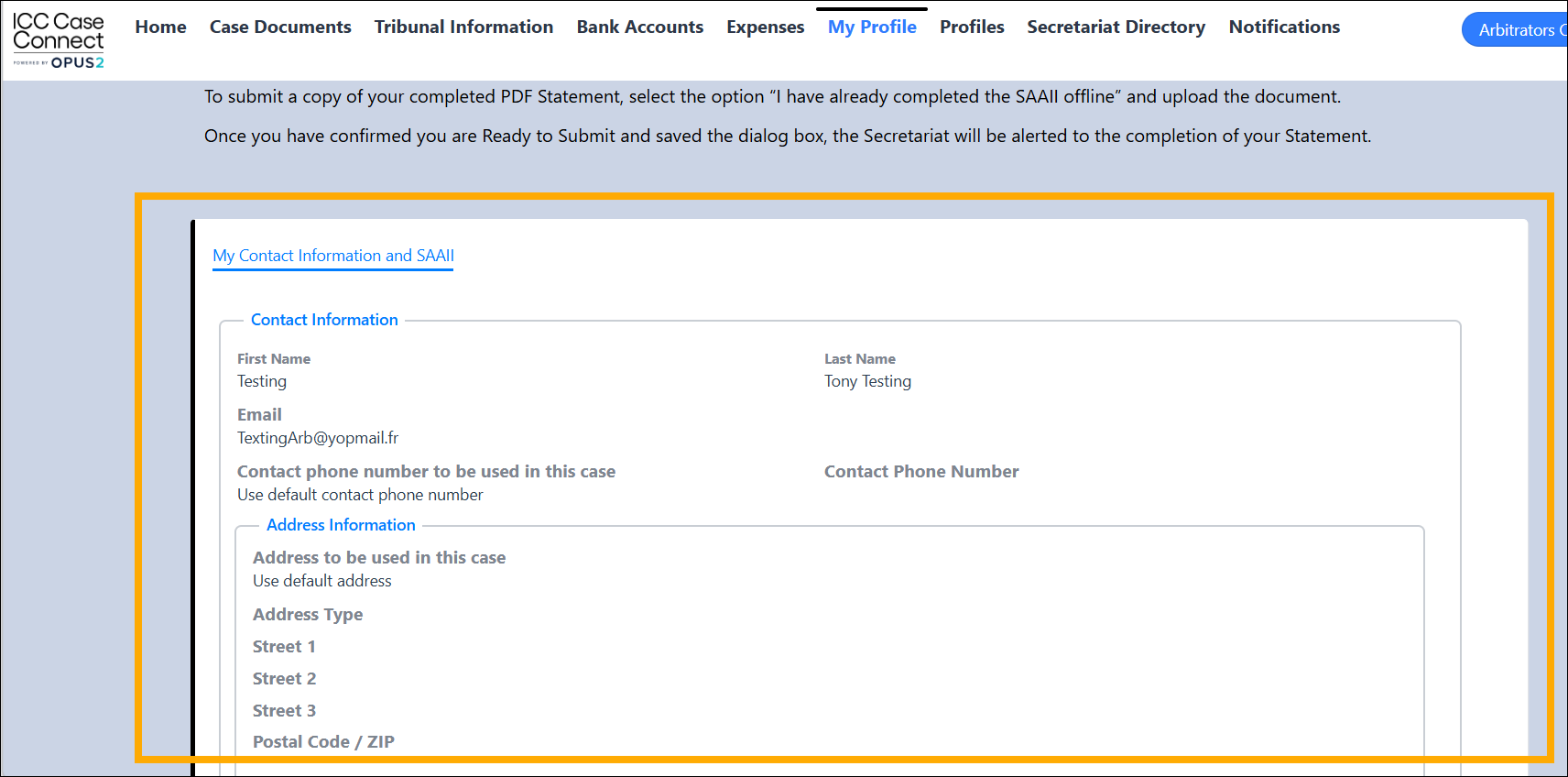
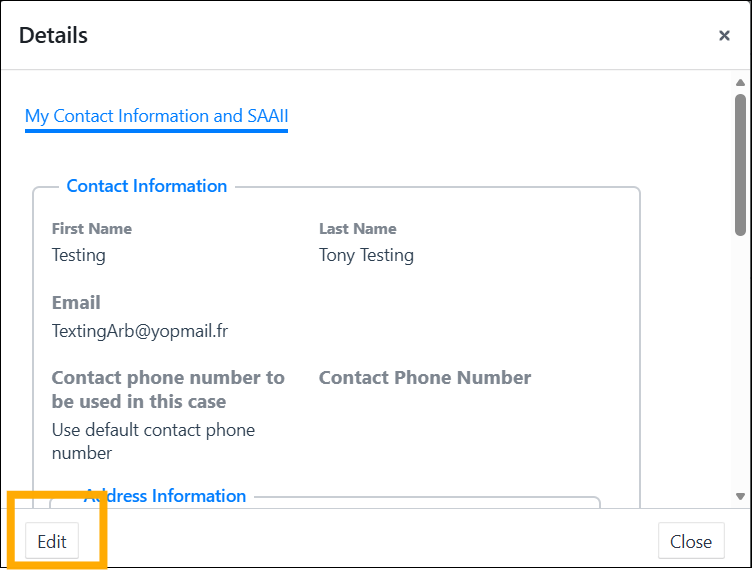
2. In the popup window, click the Edit button.
3. The details will then be editable for you to update the information as required.
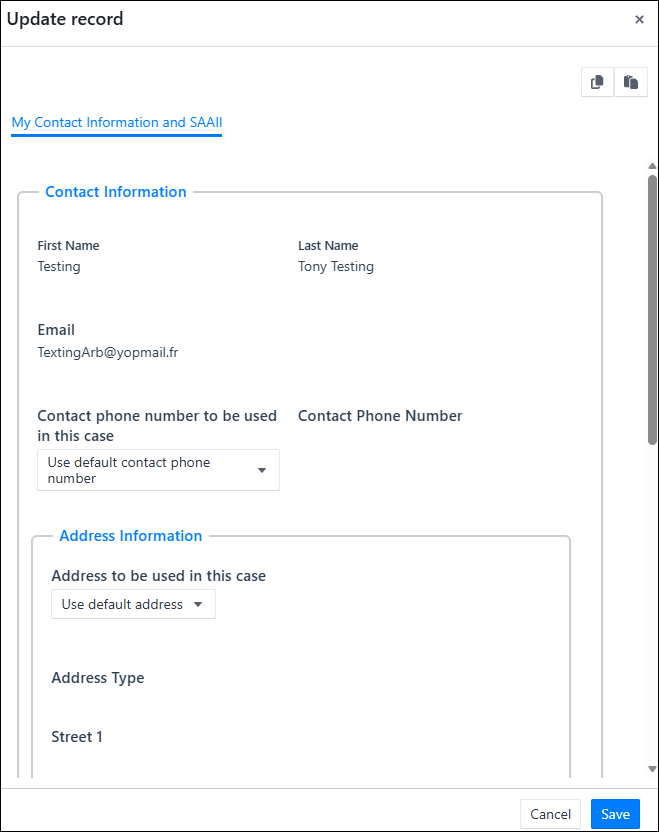
4. You can choose how you wish to submit your Statement of Acceptance via the “SAAII Submission Method” field in the pop-up window: (a) by completing the eForm directly via the platform, or (b) by uploading a copy of the PDF Statement you completed offline.
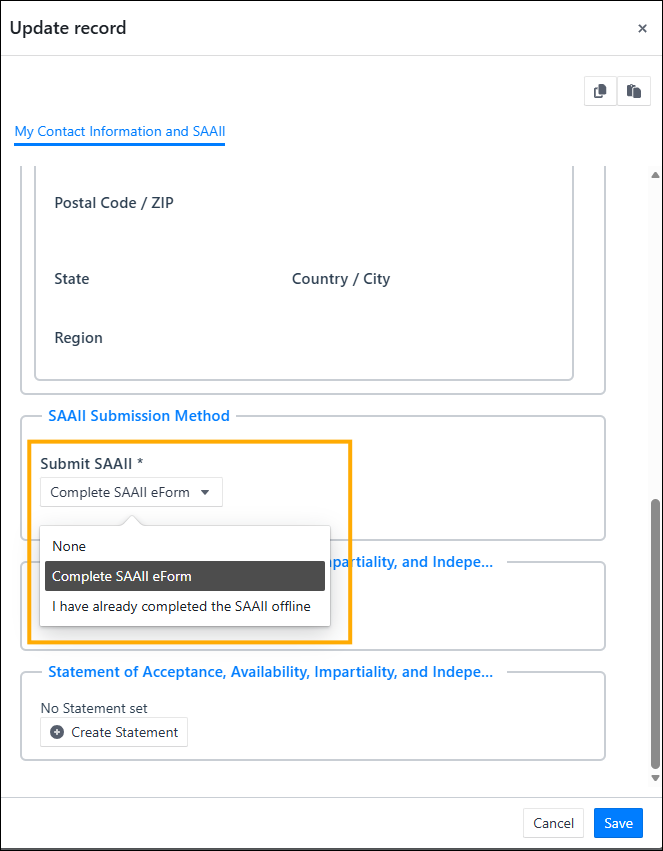
5. Submit your SAAII as an eForm:
- Select the option “Complete SAAII eForm” and click “Create Statement” to proceed.
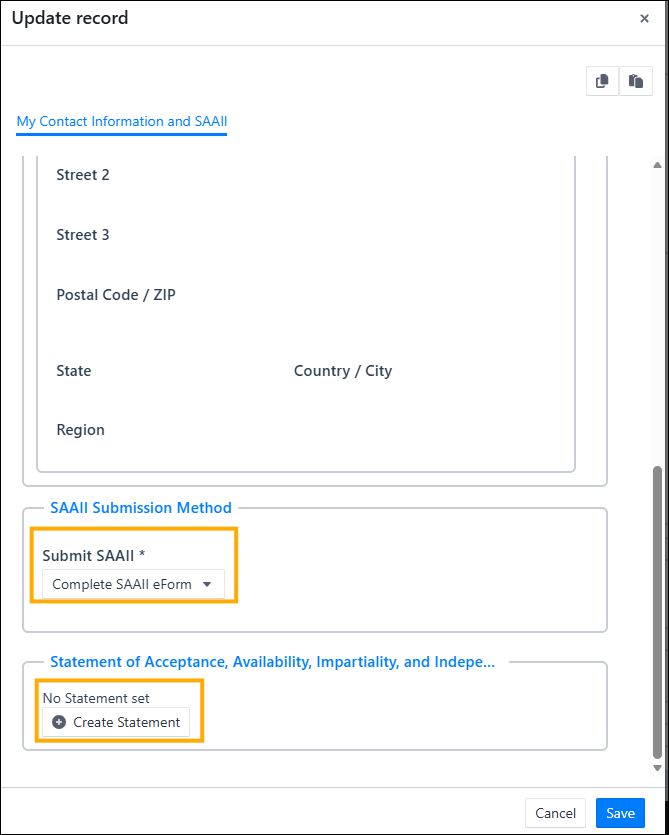
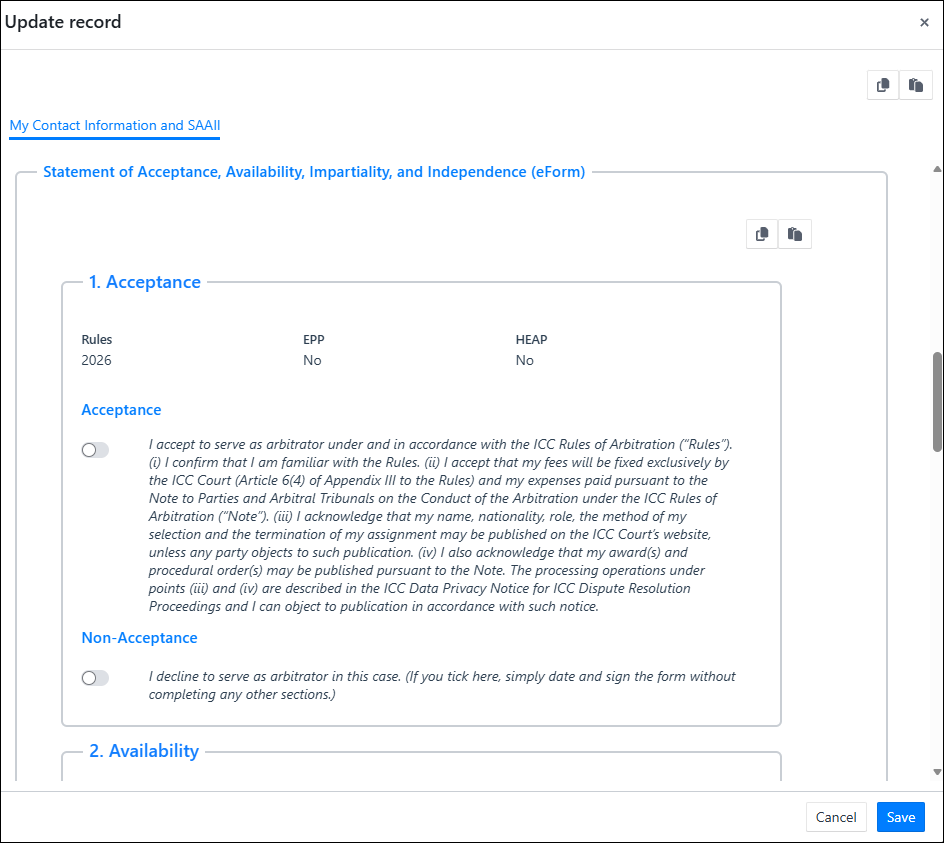
- You will then be able to fill out the details of the form, including:
- Acceptance
- Availability, including a confirmation of availability, number of pending cases, and information on upcoming availability containing the dates of any existing commitments that would prevent you from sitting in a hearing.
- Independence and Impartiality, with details of any disclosures.
You can save the form and return to it later.
If you need to provide additional information, in relation to availability (such as a calendar extract) or disclosures, on a separate sheet, you can upload additional documents by clicking “Upload” in the field “Additional Documents".
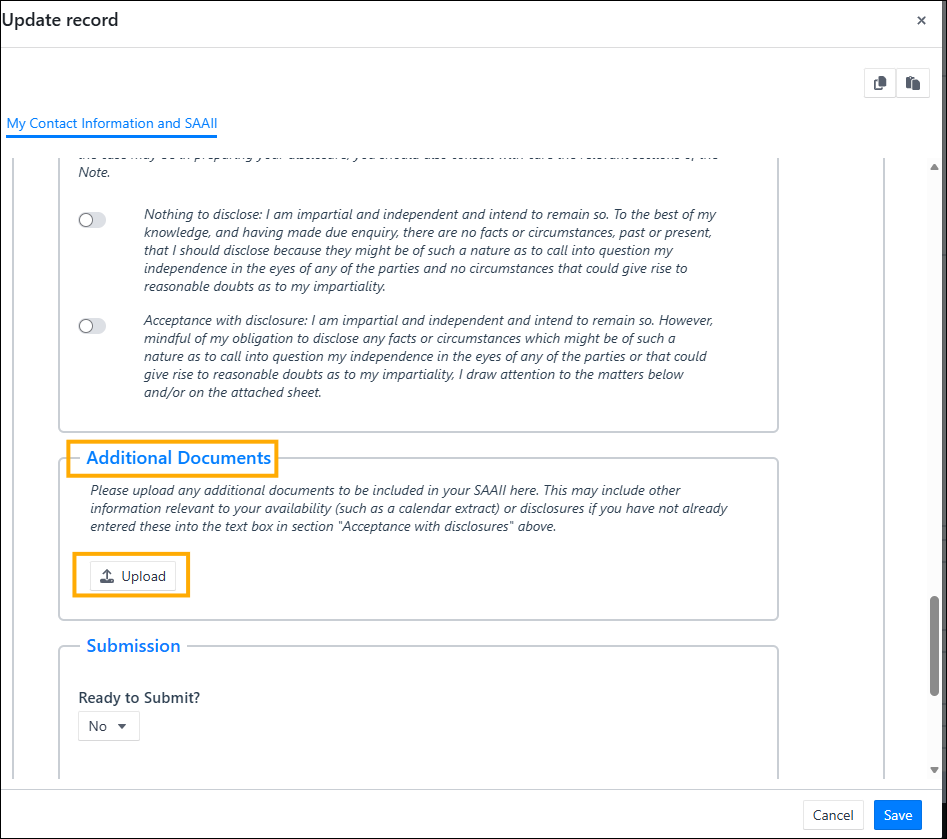
Once you have completed all information as required, you will be ready to submit the SAAII to the case management team.
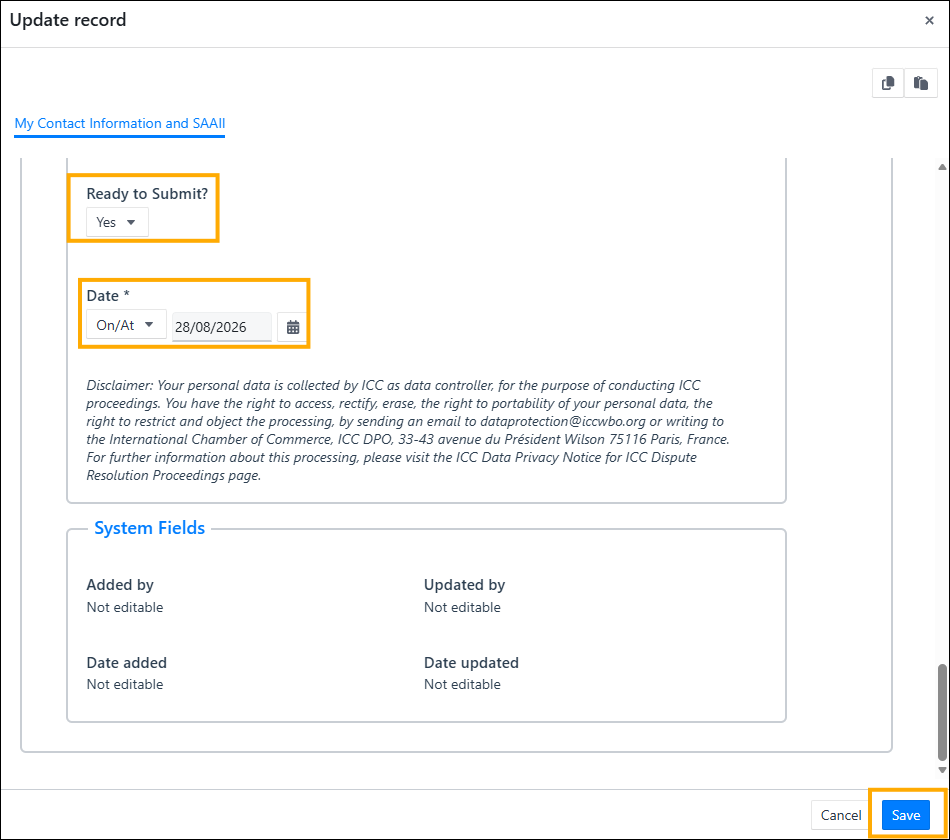
- Confirm you are ready to submit the form by indicating “Yes” in the field “Ready to Submit”.
- Enter the date in the "Date" field.
- Click "Save" in the bottom right corner of the dialog box which will alert the case management team that you have submitted your SAAII.
Important: A notification will only be sent to the case management team if both the Ready to Submit and Date fields have been completed. Otherwise, the form will save with no notification being sent
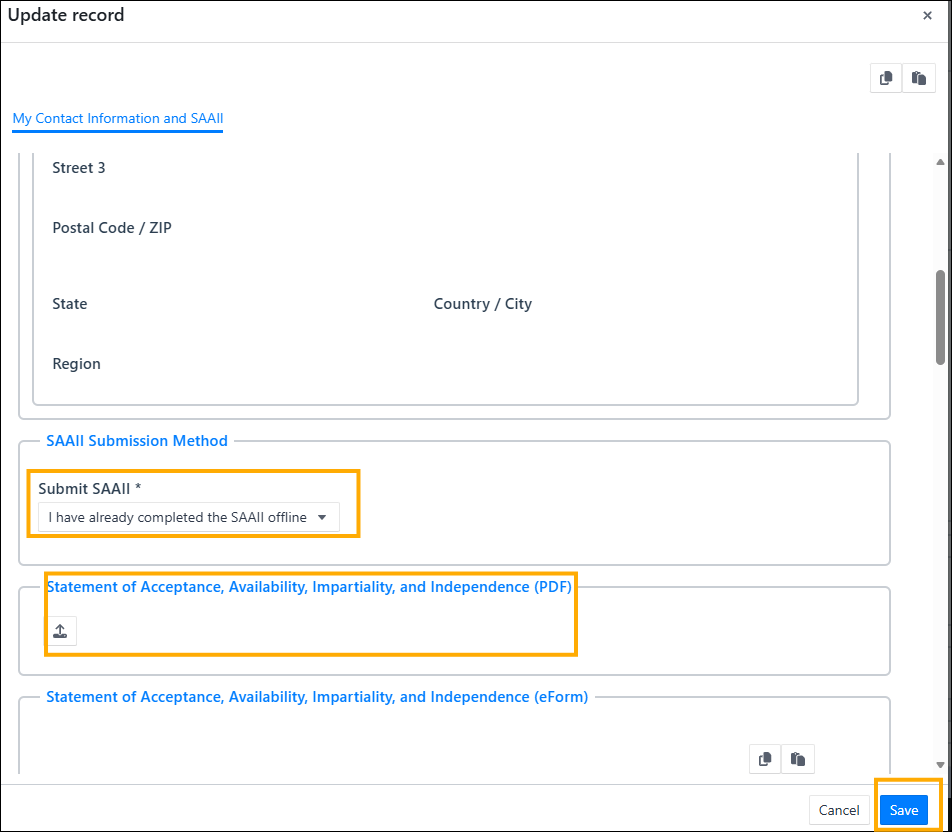
6. Submit your PDF SAAII completed offline
- In SAAII Submission Method, select “I have completed the SAAII offline,” then click the upload button to upload the Statement. Once done, click “Save”.
Was this article helpful?
That’s Great!
Thank you for your feedback
Sorry! We couldn't be helpful
Thank you for your feedback
Feedback sent
We appreciate your effort and will try to fix the article